Author: Peter Knight

Mid-Season Assessment: NBA Season Still Worth Watching?

I can’t remember an NBA season with so many high profile players landing on the injured list. The most devastating ones to me are the season ending injuries to Boston’s Rondo and Sullinger. As the Celtics are my favorite team to watch (all be it while playing in a very unwatchable way), those injuries were very demoralizing. It means that whatever good the Celtics do in the playoffs will be by virtue of overachieving. When Sullinger went down it was particularly disappointing as his development – now put on hold – was a bright spot for the Celtics, even while the team was playing some horrible basketball.

Boston’s story going forward will be about how much grit they can show without their best player. They have enough pride to beat any team on any given night, as they have already shown by beating Miami, the Clippers and New York convincingly. Nobody expects them to go very deep into the playoffs and that might spur them on. How they play as a team and individually will determine their future with the Celtics. The pieces that don’t perform are likely to be headed out. And depending on how this season goes, Garnett might even decide to call it a day.

Meanwhile, the Lakers, who had similar preseason title hopes, have all but lost their chance to even reach the playoffs. Even though that have the wrong coach for their personnel and while taking in account the time it requires to find chemistry with a new team, or even the skimpy bench, none of these are the real reason the Lakers find themselves under .500. Injuries to Steve Nash, Dwight Howard and Pau Gasol have prevented them from getting anywhere close to the team they could be on paper.

Nevertheless, they still are a fascinating story line to watch. Kobe’s play has been stellar. Having lead the league in scoring for a while, he’s now looking to compliment in different ways by play making, rebounding and defending more than usual. But I’m glad I’m not a Laker fan because the outlook is pretty grim. You have two centers who can’t thrive together in Gasol and Howard, Kobe’s only got another year left after this, Gasol is only getting older and has a hard-to-move contract, Howard is likely gone after the summer. Why? He wants to build his own legacy, outside of the shadow of those who have walked before him (Shaq, Kareem and Wilt). So far, nothing has told me he really likes to be in LA. He reportedly wouldn’t even listen to Steve Nash’s advice on improving his free throw shooting.

Another team who’s season is turning into a train wreck is the Dallas Mavericks. You have a Hall of Fame quality player in Nowitzki, but are unable to surround him with the same level of talent that lead to a championship only 2 years ago. They are not even close to making the playoffs and even if they make a heroic run in the 2nd half of the season, they have to battle the likes of Portland, Houston, Utah and the Lakers for a lowly 8th seed. They don’t have much look forward to in the summer as the most interesting players on the market are likely to sign with their current teams or somewhere else.

Minnesota. You have to like this team on paper. The ultra-productive Kevin Love teamed with the fancy playmaking abilities of Rubio, flanked by the all-around and rejuvenated play of Kirilenko, supported by a rising star big (Pekovic) and complimented with feisty players like Barea. But finding any continuity with so many injuries on your roster is close to impossible and since the West is outrageously competitive, there’s no glimmer of hope in making the playoffs even though this should be a playoff team.

There are also some feel good stories that may unfold in the aftermath of injuries. Derrick Rose is set to return and his team is playing at a very high level. They have probably got the best coached team in the league, with Thibs getting increased production out of Noah and Boozer following up a disappointing campaign in the lockout season. Even Nate Robinson is thriving within the Bull’s team concepts. With Rose back, they are viable threats out in the East. Against Miami, they have a clear advantage down low and their defensive schemes will give Miami a run for their money.

John Wall is at a pivotal point in his career and since his return he hasn’t put up spectacular numbers, but it can’t be a coincidence that the Wizards are now playing respectable basketball. That’s encouraging because his talent level is high, you can’t help but want to see him succeed.

The Knicks are a fascinating team loaded with 3 point shooters and veteran savvy, while Carmelo is putting in a MVP-like season. This roster is pretty unique and they had a phenomenal start to the season. If they regain that form in the post season and shoot the lights out they can knock out any team, including the Heat.

Lebron is playing historic basketball. After winning a title his confidence is sky high and he’s excelling in every facet of the game. The only pedestrian aspect of his game is his free throw shooting. The Heat are also rounding into prime form as a unit as the playoffs approach. Nevertheless, the stakes are high for this Miami team. For Lebron to really get into the ‘best ever’ equation he needs to collect titles. If he misses the title this year, it would be disastrous. Wade and company will be one year older and Durant is knocking at the door to get a ring.

It will be fascinating to watch what happens if the Heat don’t win a title this year. It could be disastrous in the long run. When Jordan won his first, he went on two win 2 more, with another three-peat following his 1st retirement. If Lebron is unable to win titles back to back, it will hurt any argument that can be made for him in the Jordan vs Lebron debate.

All in all, despite the amount of injuries the season still has all the makings of a terrific playoffs. Let’s hope it lives up to expectations.
CSS3 PIE 2 and WordPress integration

A new release of CSS3 Pie has been announced, PIE 2.0 Beta 1. It comes with lots of goodies such as a bit of background size support and rgba support in simple linear gradients and box-shadow rendering. For a more precise break down check out the release post, as not all of the newly supported features work in all contexts.

I had written a method for integrating version 1 of PIE into WordPress for plugin and theme authors but as the new version of PIE uses a different load method, I found it useful to post an updated method. The main difference with PIE 2.0 is that the htc file is very small now (<2kB) and it will conditionally load javascript files based on the version of IE. The advantages are that you can load these js files from any server (such as a CDN) and now that unnecessary code is left out, the download will be a lot smaller. Caching works a lot better out of the box as well.

The method I’ve suggested for PIE remains mostly the same except we now have to add in a custom load path so PIE.htc will load the javascript files from the right location. By default, PIE will look for the javascript files in the same folder PIE.htc is located. Because the implementation I’m detailing here doesn’t point straight to the PIE.htc file, the script won’t be able to find the javascript by itself. A custom path to the javascript files can be specified with a pie specific css rule called ‘-pie-load-path’. You could hardcode this rule in your stylesheet and be done with it, but it’s more flexible to do this dynamically with an inline style element.

note: It’s important to note that the implementation I’m detailing here is geared toward plugin and theme authors looking to package PIE with their distribution. If you’re just trying to get PIE working on your own sites it’s easier to move the PIE files to the root folder of the domain, in a folder right off the root or in the wp-content folder. You can just follow the normal instructions and forgo with having to set a custom load path and simply point directly to PIE.htc.

The benefits to the method I’m using are the same as before:

  • avoid having to hardcode the path to PIE.htc in your css
  • avoid having to mess with php in your stylesheets to insert the path to PIE.htc dynamically
  • avoid having to move PIE.htc to the domain root or elsewhere
  • avoid having to mess with relative urls when pointing to PIE, just use an easy to remember absolute url
  • a short url and easy to remember url for referring to the PIE file in your css

The Implementation

Normally, when inserting scripts and styles, you would want to hook into wp_enqueue_scripts and use a WordPress function such a wp_add_inline_style for inline style elements. In this case, we only want to have the browser read the style element if it’s Internet Explorer, so we want to wrap our style element in the familiar conditional code to target IE only. For that reason, I opted to go for a more straight forward approach and attach the function that prints this code straight in the head section through the wp_head hook. Another benefit to this is that we can place this code before other stylesheets are loaded. (I haven’t tested to see if this makes an actual difference in terms of how fast PIE applies its styling, but it makes sense on paper)

if( ! function_exists( 'css_pie' ) ) {
	function css_pie ( $vars ) {
		$vars[] = 'pie';
		return $vars;
	}
	add_filter( 'query_vars' , 'css_pie');
}

if( ! function_exists( 'load_pie' ) ) {
	function load_pie() {
		if ( get_query_var( 'pie' ) == "true" ) {
			header( 'Content-type: text/x-component' );
			header( 'Cache-Control: max-age=2592000' );
			readfile( get_stylesheet_directory() . '/inc/PIE/PIE.htc' );    
			// Stop WordPress from loading further
			exit;
		}
	}
	add_action( 'template_redirect', 'load_pie' );
}

if( ! function_exists( 'set_pie_path' ) ) {
	function set_pie_path(){
		$piepath = get_stylesheet_directory_uri() . '/inc/PIE/';
		?>
		<!--[if IE]>
		<style type="text/css">
		html { -pie-load-path:"<?php echo $piepath;?>";}                
		</style>
                <![endif]-->
		<?php    
	}
	add_action( 'wp_head', 'set_pie_path', 7 ); // just before stylesheets are printed
}

To adjust this code to your project, keep in mind where your PIE files can be found. In this example I created a folder called PIE in the includes folder of my theme directory. You’ll need a different url path if you’re including PIE from within a plugin. If you are loading PIE within your theme – which is probably going to be the case most of the time – you may want to set the paths to look for the parent theme instead of checking the child theme. In that case you can replace get_stylesheet_directory() and get_stylesheet_directory_uri() with get_template_directory() and get_template_directory_uri() respectively.

Applying PIE in your css is as easy as cake, just use:

behavior: url(?pie=true);


10 Different Solutions To Share Your Local Wamp/Lamp/Xamp/Mamp (WordPress) Sites

If you are developing sites on your own machine, you probably have run into a situation where you wanted to share what you’re working on with another person. Or, you want to test your locally hosted site on another device, say a mobile phone.

Most web developers will develop locally because it’s a lot faster and convenient. But there is one major pain point: you’re stuck looking at the site from just that machine. That is, unless you somehow expose the locally hosted site through the network. And there are quite a few ways to do this, with each having it’s own pros and cons. I felt it worthwhile to post my research into the various different ways to accomplish this.

Accesssing local sites via IP addresses

The most direct way to share your local site with your LAN is to simply work with IP Addresses. In many cases locally hosted sites have urls such as ‘http://local.mydevelopmentsite.com’. The local part refers to a site hosted on the machine itself, so this address will only work on the machine the site is running on. Alternatively though, you can reference your local site through an ip address – such as http://192.168.1.9/mydevelopmentsite/ – and make the necessary configurations so that you can type in that IP address and browse the site from another computer on the network.

This solution is simple enough and it works. It’s a great solution if you want to just test a site over your LAN. The downside is you have to use ugly ip addresses. Setting up multiple sites is a pain, as you have to screw around with multiple ip addresses or work with subfolders. It doesn’t work out of the box outside your LAN, so if you want to share a site with a client or friend, you need something else. Also, if the IP address changes, it’s an even greater pain (You would have to make sure your router and devices get a fixed ip address instead of appointing these dynamically). Keep in mind that if you’re working on a WordPress site, you’ll have to make the changes in the settings table of your database every time the domain name changes.

DesktopServer

This is a software product primarily aimed at WordPress developers. It makes setting up local WordPress sites ridiculously easy, taking out the pain of going through much of the configuration manually. It also has a neat feature which automates the process of making your sites accessible over your Lan (not over the internet). I believe it works with the ip address of your local machine, much like is mentioned above (except this software automates most of the setup). I haven’t tested this software myself yet, so I can’t really vouch for it yet. But if it does indeed use ip addresses, the same caveats apply as listed above. Also, I’m not sure if you can set up multiple sites or just one.

Turning a pc into a server

You can use your computer as a server and make your local site available to the rest of the internet. The Lamp/Wamp/Xamp/Mamp stacks are all capable of making your sites public.The benefit here is that you can share your site outside of your network, but you still have to deal with ugly ip addresses, which may change due to your internet service provider. It also makes your computer a bigger target to hacking attacks.

Of course, lots of programmers have their own dedicated servers running at home for private use. You could easily convert an unused pc as a dedicated server. These things are a little more complex and you generally really need to know what you’re doing to keep things secure. And let’s be honest, maintaining a server is not on top of everybody’s wish list.

Dynamic DNS

DNS is a system that does true magic: it converts human friendly domain names into the actual numeric addresses that computer networks understand. The web relies on DNS to convert domains names into addresses. Some routers may let you setup Dynamic DNS just for your own local network, allowing you to appoint domain names for the addresses on your network. This is great because these only work within your network and people outside your network won’t be able to access the domain names successfully.

You can also use a service such is provided by DYN. They let you setup domain names for your local sites, or any device you want to make accessible for that matter. That way, you (and anyone else) can access those sites from anywhere, even from other locations. The heavy lifting DYN does is making sure your domain names resolve to your sites ip address from anywhere in the world. Because the IP may change quite frequently, you have to update it with the DNS to keep it working. That’s a tricky thing, but easily solved with DYN. A software client is downloaded to your device that will monitor for any IP changes and correct the settings with the DNS setup automatically. As you might have guessed, this isn’t a free service, but it isn’t expensive either at $29.95/year.

Localtunnel

Localtunnel is a free service sponsored by Twilio which lets you share localhost over the web. It’s a pretty straightforward affair: you install LocalTunnel on your homeserver and set up subdomain under localtunnel.com (for example: mytestsite.localtunnel.com). Your local site can then become accessible through that subdomain. It’s really simple and it’s free. So what’s the caveat? There are three potential drawbacks. First, you’re stuck with localtunnel as the root domain. Second, you need to be able to install Localtunnel on your home server and your stack might not be able to run it amicably alongside your apache/php/mysql setup. And third, you have to rely on Localtunnel and the people administering it, which might not make it suitable for every use case. While there is no reason to mistrust the good folks, there are no guarantees of uptime and security for a free service like that.

Note: There are other services that operate just like Localtunnel, many of these are paid services. They all work pretty much the same. You can even run Localtunnel yourself as it’s open source.

Tonido plug

Tonido plug is a plug computer, which is effectively a little server that you can hook up to a hard drive. It’s a really tiny device that draws little power. Tonido is geared toward providing your own private cloud, making your files accessible to your other devices as well as perhaps your friends, family or colleagues. The device comes with a server stack that is compatible with say, WordPress sites, with a bit of configuration. What this means is that you can have a very low cost server running 24/7 for your local sites. Really, I see this as the holy grail if it weren’t for the configuration that is needed. Right now installing something like WordPress alongside Tonido’s own cloud software looks non-trivial and there are no guides available. If only they would make creating local sites as easy as a click of a button. That would be sweet indeed.

Other Plug Computers

Tonido is not the only plug computer in the game, in fact there are quite a number of them, many which are cheaper to boot. But these other plugs require more setup steps to get everything running and you have to figure this all out on your own as they don’t come pre-loaded with all the right things installed and configured.

Pagekite

Pagekite is a service run by an Icelandic company. They are somewhat similar to Localtunnel, except the setup is even easier and you don’t have to worry about compatibility issues with your server stack. The process involves installing python (if your system doesn’t have it already) and running their python script. You need an account with their site to set up your ‘kites’, aka your local sites. You can set up any number of these using subdomains off of the pagekite.net root domain. They support SSL connections which is good for security and privacy, but as Pagekite is the middleman, you have to implicitly trust them (no reason not to though as they are a privacy/security conscious group). Pricing is good also, you can get a free trial and pay a pretty low fee anywhere from $4/month and upwards after the trial finishes.

Syncing

If all your site’s local assets are static, syncing your site’s files is actually pretty easy to do. You could even use something like dropbox to keep folders in sync and let other devices run the site from that folder. If you are using a local database, it’s technically possible, but not really advisable if the site is very active as you could easily create conflicts while storing data in the database.

Portable

There are portable versions of many AMP stacks available that let you install your server on a thumbdrive, which you can then load up on any computer you please. Sharing your sites can then be as easy as sharing your thumb drive. It’s very handy for developers on the go. This solution doesn’t scale well obviously and it doesn’t get around the use case of testing sites on mobiles, but for some situations it’s the easiest and simplest solution.

Please build this product

While there are plenty of methods to sharing local sites online, it could be a lot easier. I would love to see a plug computer which is optimized for the task of making local sites accessible across your local network or over the internet. It can be done with today’s plug computers, but it’s a solution that involves a lot of configuration steps. And a setup that is so easy that regular consumers could use would open up the door to new kinds of applications that could compete with today’s ubiquitous cloud based services.

Update 30/10/2013: A new way to share your WordPress site

A few months ago I came across the ArkOS initiative. It’s a linux based operating system targeted toward plug devices such as the Raspberry Pi. One of the coolest things about it is that it comes with a WordPress installer straight from their interface, which makes setting up WordPress sites on a plug computer super easy. I’ll be giving this a go in few months.

Woocommerce Tutorial: Better Product Listings For Imageless Products

Recently I’ve been working on my second WooCommerce project and I’ve found it quite a flexible solution so far. Woocommerce pretty much expects products to have images and the templates expect there to be a product image, so when you have a product without an image (because it’s a service and not a physical product for example), things don’t look that good. The following solution allows you to selectively modify the appearance of imageless product listings.

Notes: This is a good solution if you have a mix of products/services with and without images, or you have imageless products for which you may want to add product images later. You could also write your own template which overrides the default template. This solution however works well with the default template WooCommerce provides.

Because WooCommerce inserts an image element with a placeholder if no image was set for the product, the first thing we need to do is to prevent the image tag from showing up. We can do that by calling a custom funtion from the appropriate WooCommerce hook. For product listings that are shown in loops, the action hook that adds the function for the image display is called ‘woo_commerce_before_shop_loop_item’. There is another action hook called ‘woocommerce_before_shop_loop_item’ that runs before the image – which is wrapped in a link – is outputted. That’s the point where we want to run our modifications.

function before_imageless_product() {
	if( !has_post_thumbnail( get_the_id() ) ){
		remove_action( 'woocommerce_before_shop_loop_item_title', 'woocommerce_template_loop_product_thumbnail', 10 );
		echo '<div class="no-image">';
	}
}
add_action( 'woocommerce_before_shop_loop_item', 'before_imageless_product', 9 );

So what’s going on here? Well, we first check to see if the product in question has a thumbnail associated with it. If it has, we can maintain the normal templating, if it hasn’t we want to prevent an image element containing a placeholder from being inserted. We do that by calling remove_action on the ‘woocommerce_template_loop_product_thumbnail’ function. Because we want products with images to maintain their templating, we have to remember to add this function back. We do that by adding the call back right after, which we’ll get to next.

You’ll see we’re also inserting a div when there is no image present. Why? Well, the chances are you want to modify the layout in CSS so that the display looks nice in your theme. In that case we’ll need a way to style the product listings that have no image separately from those products that do have an image. Because there are no filters that are run on the CSS classes of the product listing that we can tap into easily, another way to do this is to simply wrap the product output in a div with its own class name. That way we can target the product listing in CSS without having to write a different template from scratch.

Now that we have implemented to code to remove the image from imageless product listings, we complete the modification by adding the image function back in and closing the div element we just inserted before the loop continues.

function after_imageless_product() {
	if( !has_post_thumbnail( get_the_id() ) ){
		add_action( 'woocommerce_before_shop_loop_item_title', 'woocommerce_template_loop_product_thumbnail', 10 );
		echo '</div>';
	}
}
add_action( 'woocommerce_after_shop_loop_item', 'after_imageless_product', 9 );

You should now see that default placeholder isn’t being outputted. You may want to tweak the css to make the imageless products look better. You can now easily do so by targeting those listings with the .no-image class.

* This example assumes a default-ish WooCommerce setup, if you have customized WooCommerce or are running a WooCommerce theme, there is a small possibility that the display is handled differently and the code might not work as intended.

Why Does Kevin Love Not Improve The Timberwolves Record?

There are few players that can stuff a box score like Kevin Love can. He may go down as the best rebounder in NBA history. He can also shoot threes. Last year he sported a PER of 25.41. A talent like that doesn’t come by often, but why on earth doesn’t his team have a better record?

He’s publicly questioned the organisation for the way it has managed the team, but if you look at the roster now, he’s surrounded by talent. You get the impression that he’s putting the blame on the management. They are a lot better on paper than their record shows. If you have a superstar on your team, you should be winning games on sheer talent alone. But that doesn’t seem to be the case with Kevin Love.

Compare him to an all-time great, another legendary rebounder. In all of Charles Barkley’s seasons with the Sixers, he only failed to make the playoffs once (his final year). Hersey Hawkins was the second best player on the team, which says it all. Kevin Love has missed the playoffs every year of his career so far. And now he’s got incredible talent around him.

Since Love’s return from injury, they have gone 8-8, a .500 team. The thing is, they were playing like a .500 team before he returned (going 6-6). While it’s a small sample size, the fact remains that on paper, he hasn’t added wins.

When the Bulls get Derrick Rose back (and his health is good), their win record will go up, it’s just a given. The difference will be palpable. How come Love, who puts up superstar numbers, doesn’t make the same impact?

I don’t know why. I do know that it confounds me. And it makes Kevin Love’s public complaints sound unbecoming of a superstar basketball talent.

I like the Wolves roster and I think they should move Kevin Love. It’s not like he’s going to sign a a new contract anyway. They have so many good pieces, Shved, Pekovic, Rubio, Kirilenko, all of which are great team players. Just need a good replacement at power forward, someone like Horford, Josh Smith, Aldridge or even Demarcus Cousins.

Short Body Classes For Page Templates [WordPress]

Styling page templates with CSS is made even easier with the body_class() function which appends all kinds of handy classes to the body element. If you want to make the home page have a unique style, you could do things like:

.home {
   background-image: url(awesomebackgroundimage.jpg);
}

Targeting specific page templates is possible to, but the naming convention is very ugly. The default page template (page.php) would get a body class of page-template-default. A full width template with a filename like full-width-page.php would get a body class of page-template-full-width-php. Basically it adds page-template as a prefix and uss the full file name including the ‘php’ file extension. It’s not just ugly, but it also makes the css file grow if you are using the body class extensively, not to mention making the css harder to read. Oh, and it sucks typing out long class names.

Fortunately, it’s very easy to hook into the body_class function and add your own classes with a shorter naming convention. Here is a snippet that will display a body class of full-width when using full-width.php as the page template.

function my_short_page_template_body_classes( $classes ){
	if( is_page() ){
		$template = get_page_template_slug(); // returns an empty string if it's loading the default template (page.php)
		if( $template === '' ){
			$classes[] = 'default-page';
		} else {
			$classes[] = sanitize_html_class( str_replace( '.php', '', $template ) );
		}
	}
	return $classes;
}
add_filter( 'body_class', 'my_short_page_template_body_classes' );

This function doesn’t replace the longer naming convention WordPress uses by default (so those class names will still be injected too), it just adds a brief class name whenever a page template is being used.

Which would you rather type?

.full-width{
 width: 960px;
}

.page-template-full-width-php {
 width: 960px;
}

Easy choice.

Custom Functions With LESSPHP: Cheat sheet

My favorite feature of the fantastic lessphp library is the ability to easily add in your own custom functions. This makes working with LESS truly flexible as you can add a bunch of features that less doesn’t already have. Imagine having a css preprocessor that will do anything at your whim, well with lessphp you do. I’ve built some custom color scheme functions, a gradient image generator, a rem to px converter and more. The possibilities are endless.

The documentation on custom functions is fairly brief (make sure to read it!) so I started writing down a cheat sheet for reference purposes. For starters, it’s important to know how LESSPHP passes arguments to functions. You need to know what format the data will be in so you can process it inside your function.

Data Structure

The data structure your php function gets to work with depends on whether your custom less function received one argument or multiple arguments. If it’s a single argument, you’ll get an array like this:

/*
css example:
.test {
     padding: my_custom_function( 10px );
}
this array is sent on to your custom function
*/
array(3) {
  [0]=>
  string(6) "number"
  [1]=>
  string(2) "10"
  [2]=>
  string(2) "px"
}

This is pretty straightforward. The first value of the array contains the type of the value.

Arguments that are passed to your custom function are first processed and parsed by lessphp and then passed on as one of the following types:

  • keyword (a string that is a single word)
  • number (any numeric value, with or without a unit appended)
  • string
  • color

Each of these types also has its own data structure, which we will get to in a moment.

If you have multiple arguments, you’ll get a multidimensional array like the following:

/* .test{
    padding: my_custom_function( 20px, 62.5% );
}
the following is a vardump of what is passed on to the custom function
*/
array(3) {
  [0]=>
  string(4) "list"
  [1]=>
  string(1) ","
  [2]=>
  array(2) {
    [0]=>
    array(3) {
      [0]=>
      string(6) "number"
      [1]=>
      string(2) "10"
      [2]=>
      string(2) "px"
    }
    [1]=>
    array(3) {
      [0]=>
      string(6) "number"
      [1]=>
      string(4) "62.5"
      [2]=>
      string(1) "%"
    }
  }
}

Note that in case of multiple arguments the first value of the array is ‘list‘. You can use that value to check if your custom function should anticipate one or more arguments. If it’s a single argument the first value will be the value type, otherwise it will be equal to list. It’s important that you do a check like that if your function is designed to take a varying amount of arguments.

The second value in the array in case multiple arguments were passed is the delimiter used between the variables in the function call. When using custom functions it’s fine to separate arguments with spaces or with commas.

.test{
    color: my_color_function( @color1, @color2 );
    background-color: my_color_function( @color1 @color2 );
}

Data Structures Per Type

Color:

No matter what color notation (hex, color name, hsl(a) or rgb(a)) is used as an argument inside the less input, it will be parsed and sent on as an array in RGB format. If there is an alpha value, it will specify a fourth value containing the alpha value.

Keyword:

The keyword is the simplest value to deal with, as the array for this will contain ‘keyword’ as the first value in the array and the actual word as the second value in the array.

String:

Strings are returned with a nested array. The first value in the array contains the type ‘string’, the second value contains the delimiter (which could be double, single or no quotes for example) and the third value is an array containing the raw string.

Number:

For numeric values, the first value will as usual denote the type of the data (which will be number). The second value in the array will be the raw numeric value. The third value is the unit, which will be blank if the unit was passed without any unit.

Returning A Value

Your custom function has to send back a value and you have to follow the same data structure that the lessphp script likes to use.

To return a color, send back an array like this:

return array( 'color', $red, $green, $blue, $alpha );

You can also send a raw color value back, which basically means any kind of color notation you could enter in to css.

$rawcolor = 'hsla( 200, 10%, 60%, 0.4)';
return array( 'raw_color', $rawcolor );

To return a string, send it like this:

return array( 'string', $delimiter, array ( $string ) );

To return a keyword:

return array( 'keyword', $keyword );

To return a number:

return array( 'number', $number, $unit );

To call another less function:

$function = 'darken';
$arguments = array( '#FF330F', '10%' );
return array( 'function', $function, $arguments );

That covers the basics. As a final helper, here is what the array looks like when passing multiple arguments of various types. It should give you an easy reference to know how to deal with different types of arguments.

/*
in our less we are calling a custom function with tons of different variables to give you an idea of the array that gets passed to your custom function.
.test {
    my_custom_function( "Amatic SC", url(www.w3.org), 'http://html5.com', 800, regular, 100px, 40%, green, #FF44E3, rgba(30,40,254,0.1), hsl(100, 33%, 50%) );
}
And here's the vardump it produces:
*/
array(3) {
  [0]=>
  string(4) "list"
  [1]=>
  string(1) ","
  [2]=>
  array(11) {
    [0]=>
    array(3) {
      [0]=>
      string(6) "string"
      [1]=>
      string(1) """
      [2]=>
      array(1) {
        [0]=>
        string(9) "Amatic SC"
      }
    }
    [1]=>
    array(3) {
      [0]=>
      string(8) "function"
      [1]=>
      string(3) "url"
      [2]=>
      array(3) {
        [0]=>
        string(6) "string"
        [1]=>
        string(0) ""
        [2]=>
        array(1) {
          [0]=>
          string(10) "www.w3.org"
        }
      }
    }
    [2]=>
    array(3) {
      [0]=>
      string(6) "string"
      [1]=>
      string(1) "'"
      [2]=>
      array(1) {
        [0]=>
        string(16) "http://html5.com"
      }
    }
    [3]=>
    array(3) {
      [0]=>
      string(6) "number"
      [1]=>
      string(3) "800"
      [2]=>
      string(0) ""
    }
    [4]=>
    array(2) {
      [0]=>
      string(7) "keyword"
      [1]=>
      string(7) "regular"
    }
    [5]=>
    array(3) {
      [0]=>
      string(6) "number"
      [1]=>
      string(3) "100"
      [2]=>
      string(2) "px"
    }
    [6]=>
    array(3) {
      [0]=>
      string(6) "number"
      [1]=>
      string(2) "40"
      [2]=>
      string(1) "%"
    }
    [7]=>
    array(4) {
      [0]=>
      string(5) "color"
      [1]=>
      string(1) "0"
      [2]=>
      string(3) "128"
      [3]=>
      string(1) "0"
    }
    [8]=>
    array(4) {
      [0]=>
      string(5) "color"
      [1]=>
      float(255)
      [2]=>
      float(68)
      [3]=>
      float(227)
    }
    [9]=>
    array(5) {
      [0]=>
      string(5) "color"
      [1]=>
      float(30)
      [2]=>
      float(40)
      [3]=>
      float(254)
      [4]=>
      float(0.1)
    }
    [10]=>
    array(4) {
      [0]=>
      string(5) "color"
      [1]=>
      float(113.475)
      [2]=>
      float(169.575)
      [3]=>
      float(85.425)
    }
  }
}

How To Show A Sortable Last Modified Column In The Manage Posts Screen [WP]

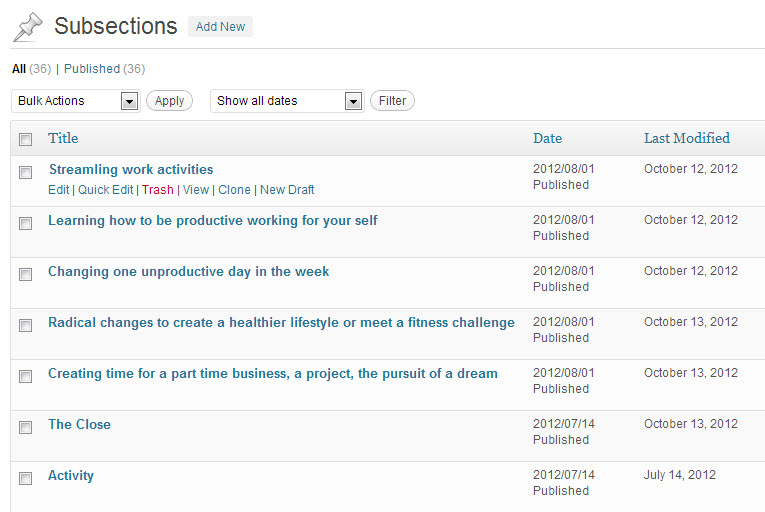
So you want to quickly find posts that were recently edited? Here’s a quick WordPress guide to adding a sortable column to the post managing screen that displays the last modified date. This example can be easily modified to work with another type of field or a specific post type.

Step 1

So to start, let’s register the column we want to have appear. We’ll have a function to add our column name to the columns array. A filter hook will call this function.

function add_last_modified_column($columns) {
    return array_merge( $columns,
              array("last_modified" => __("Last Modified")) );
}
add_filter("manage_posts_columns" , "add_last_modified_column");

Step 2

Let’s create a function that will output our column’s data and hook it into the posts column. Depending on what kind of content screen (pages/posts/custom posts) you want to show the column, there are different action hooks that you can apply. To target a specific custom post type you use the following naming convention:

manage_${post_type}_posts_custom_column() // for posts (non-hierarchical)
manage_pages_custom_column() // for pages (hierarchical)

The basic one is the general manage_posts_columns action hook, which we’ll be using here.

function last_modified_column( $column, $post_id ){
  if( "last_modified" == $column ) {
    the_modified_time( "F j, Y" );
  }
}
add_action( "manage_posts_custom_column" , "last_modified_column", 10, 2 );

What’s happening here is that when the columns are being processed one by one, when it matches the column called ‘last_modified’  it will output the last modified time of the post. We’re using the_modified_time() function to render the time the post was last updated. We can control the formatting date and time by passing parameters you might already be familiar with. The action hook registers our function so that it’s run when it processes the columns.

Step 3

Next we want to tell WordPress that this column should be sortable by registering our interest. We’ll be using an action hook that follows a familiar naming convention.

function last_modified_column_register_sortable( $columns ) {
	$columns["last_modified"] = "last_modified";

	return $columns;
}
add_filter( "manage_edit-post_sortable_columns", "last_modified_column_register_sortable" ); // replace "post" with the slug of your custom post type

Step 4

We need one extra step to make this column sortable. To do this will create a function that modifies the request with an extra query parameter that enables the sorting.

function sort_column_by_modified( $vars ){
	if ( isset( $vars["orderby"] ) && "last_modified" == $vars["orderby"] ) {
		$vars = array_merge( $vars, array(
			"orderby" => "modified"
		) );
	}
	return $vars;
}
add_filter( "request", "sort_column_by_modified" );

To get it all working, we now only have to make sure this code is loaded by adding it to a custom plugin, or the theme’s functions.php file. Personally I would recommend creating a small custom plugin for this. The great thing about having the last modified data at a glance is that you can see what posts were recently edited, and which haven’t been touched in a long time.

Transparent PNGs and IE6: Some False Hope

While working on achieving the best possible crossbrowser compatible experience, going as far back as Internet Explorer 6, I was excited to see a site called Tinypng.org. It’s aim is to create a smaller version of your png assets while preserving transparency as it converts the file from 24 bit to 8 bit. It does these things very well and it even works in IE6. Yes you can have working transparent PNGs in IE6, as long as they are of the 8 bit variety. But there’s a gotcha. The transparency it supports is binary alpha, or in other words, each pixel will be fully transparent or fully non-transparent. Yes, that’s just like your basic GIF image.

To get an opaque png working in IE6 you could try the alpha image loader filter, but frankly, I think it gives you more trouble than it really is worth. But hey, it’s 2012 and global IE6 usage is down to around 1% or less in most Western countries. For the majority of websites, IE6 shouldn’t be an issue anymore.